
Guide overview
This guide explains how staff and students can access their Hull York Medical School (HYMS) Microsoft 365 email and calendar. Access is available via a web browser or through the Outlook app on Windows, Mac, Android, and iPhone.
Choose your preferred access method from the options below. We recommend the Outlook app on phones and tablets in preference to the device’s built-in mail and calendar apps, which can experience syncing issues.
Accessing your email and calendar via a web browser
- Open your preferred web browser. For this example we are using Microsoft Edge. Insert the following URL into your browser; https://login.microsoftonline.com/
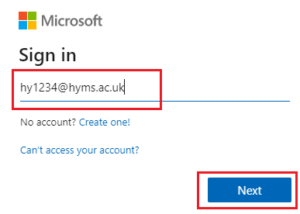
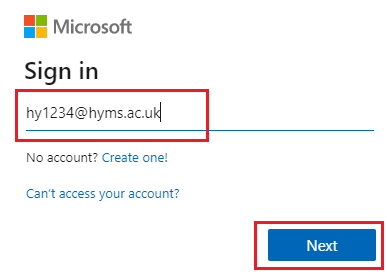
- Enter your HYMS account details in the format: hy123@hyms.ac.uk
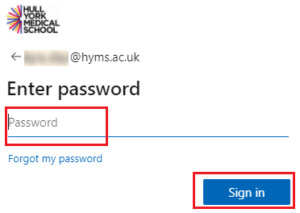
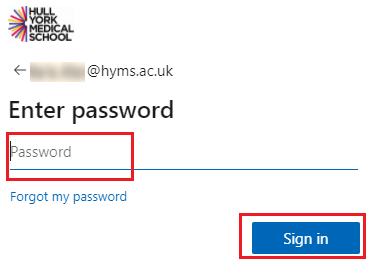
- You will be redirected to the Hull York Medical School log in page. Log in with your HYMS account in the format: hy123@hyms.ac.uk + HYMS password.
- You will now see your HYMS Microsoft 365 homepage Select the Apps shortcut and the available Microsoft 365 apps will be displayed (such as Outlook, OneDrive, Word, PowerPoint, Excel etc,.).
- Click on the Outlook icon to open your email.


Further guidance
Microsoft’s own guide covers the basics of composing emails, managing your inbox, and using the Outlook calendar: Get help with Outlook on the web.
For all other Microsoft 365 topics, see our Microsoft 365 help pages.
HYMS email and calendar via the Outlook app for Windows/Mac
The Outlook desktop app provides full access to your HYMS email, calendar, and contacts alongside any other email accounts you use.
Step 1: Install the Outlook app (if needed)
If Outlook is not already installed on your device, you can download it as part of Microsoft 365 by logging into your HYMS account via a web browser and following the software installation process. Full instructions are available on our Installing Microsoft 365 on a PC, Laptop, or Mac help page.
Step 2: open Outlook on your device 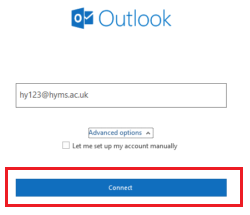
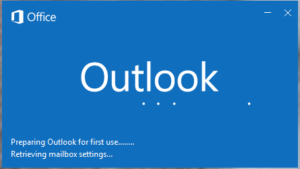
- Open Outlook on your device. If you have previously downloaded Microsoft 365 using your HYMS credentials, you may already be signed in automatically.
- If you need to add the account manually, go to File > Add Account (Windows) or open Outlook Preferences and select Accounts (Mac).
- Enter your HYMS email address in the format hy123@hyms.ac.uk and click Connect.
- Enter your HYMS password when prompted and click Sign in.
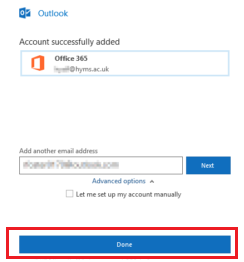
- Click Done once the account has been added. Your mailbox folders and calendar may take a few minutes to populate fully.
Further guidance
Microsoft provides training guides covering email composition, calendar management, and more: Microsoft Outlook training.
 Set up your HYMS account on the Outlook app and view your HYMS email and calendar
- Download Microsoft Outlook from the Google Play Store.
- Open the app.
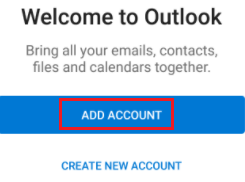
- On the Welcome screen. Select to add account
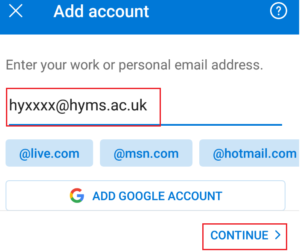
- Enter your HYMS details in the format hyxxxx@hyms.ac.uk and choose to continue. If prompted. If prompted to activate device administrator, select Activate.
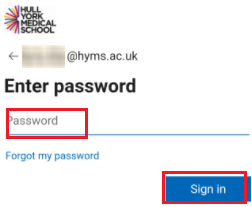
- Enter your HYMS password and tap Sign in. If prompted to add another account, dismiss this. You may be asked to complete Multi-Factor Authentication (MFA). Please access the following link to our MFA help pages for further guidance if required; MFA help pages.
 Select the mail or calendar icon from the app menu to view content.
Microsoft has produced video guides for the Outlook mobile app: Outlook for iOS and Android.
Inbox and notifications settings
Disable focused inbox (recommended)
Focused Inbox automatically sorts your email into “Focused” and “Other” tabs based on perceived importance. We strongly recommend turning this off to ensure you do not miss any important HYMS communications.
- Tap your profile picture in the top-left corner, then tap the Settings cog.
- Select Mail and ensure Focused Inbox is toggled off.
Email and calendar notifications settings
We recommend enabling calendar notifications so you don’t miss any timetabled sessions or events.
- Tap your profile picture, then tap the Settings cog > Notifications.
- Under the Mail tab, enable or disable email notifications to suit your preference.

- Under the Calendar tab, select sound settings to configure event reminder notifications. We recommend enabling these for HYMS calendar content.

- Choose to enable or disable calendar event reminder notifications. We recommend enabling calendar notifications for HYMS calendar content. Please note that these steps may vary on different devices.

iPhone / iOS (Outlook App)
- Download Microsoft Outlook from the Apple App Store Please click on the following link to access further guidance; Outlook for iOS and Android guide.
- Open the app once installed.

- Select to add account.

- When asked to choose an email provider, select Exchange.

- Enter your HYMS email address in the format hy123@hyms.ac.uk. You may be prompted to complete Multi-Factor Authentication (MFA).

- Enter your HYMS password and tap Sign in.

- Once signed in, tap the Mail or Calendar icon at the bottom of the screen to view your content.
 Inbox and notifications settings
Disable focused inbox (recomended)
As with Android, we strongly advise turning off Focused Inbox to avoid missing important emails. To do so, tap your profile picture > Settings cog > Mail and disable the Focused Inbox toggle.
Email and calendar notifications settings
We recommend enabling calendar notifications so you don’t miss any timetabled sessions or events.
- On your iPhone, go to Settings > Notifications. Find and select Outlook in the app list.
- Toggle Allow Notifications on for Calendar.

- Adjust Email notification preferences to your personal preference.

Troubleshooting Sync issues
If your email or calendar is not syncing correctly, try the following:
-
-
- Allow time for the initial sync to complete — folders and calendar events may take a few minutes to appear after adding a new account.
- Check that your device’s date, time, and time zone settings are correct. Set the time zone to Dublin, Edinburgh, Lisbon, London.
- Sync frequency may vary depending on your device and network connection; this cannot be guaranteed.
- For further guidance, see Microsoft’s Microsoft 365 sync support page.
-