
Guide overview
Many members of the HYMS community also use Microsoft 365 accounts provided by other organisations, including the University of York, the University of Hull, or the NHS. When multiple accounts are active on the same device, your browser may automatically try to use the wrong Microsoft 365 profile. This can prevent access to HYMS resources or cause login errors.
Using a Private / Incognito window helps avoid these issues by keeping your HYMS login separate from other accounts. Private browsing prevents cached sign‑in data from affecting your authentication and ensures you always access the correct Microsoft 365 profile.
When should I Use Private / Incognito Mode?
Use a private window whenever:
- You are signed in to another organisation’s Microsoft 365 account on your device
- You need to access your HYMS email, Teams, OneDrive, or other Microsoft 365 services without conflicts
- You are using a shared or public computer.
Private browsing helps prevent your browser from automatically switching to another Microsoft 365 account. It also means no login details or browsing history are saved once the window is closed.
How to Open a Private / Incognito Window in Your Browser
You will need to open a private window and then go to the HYMS Microsoft 365 login page:
https://login.microsoftonline.com/
Below are instructions for common browsers.
Microsoft Edge
How to open:
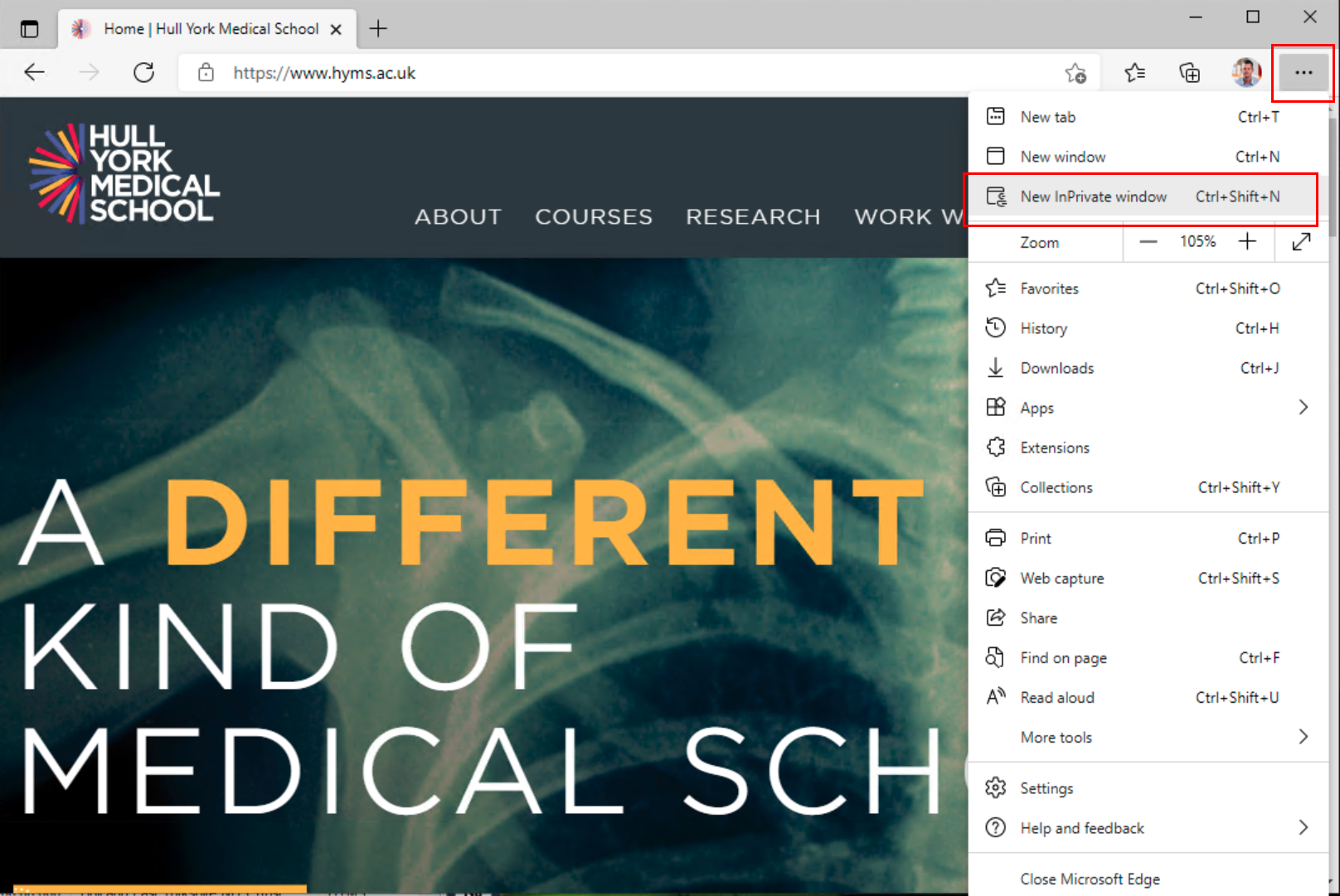
- Open the Edge menu (three dots, top‑right).
- Select New InPrivate window.
Shortcut: Ctrl + Shift + N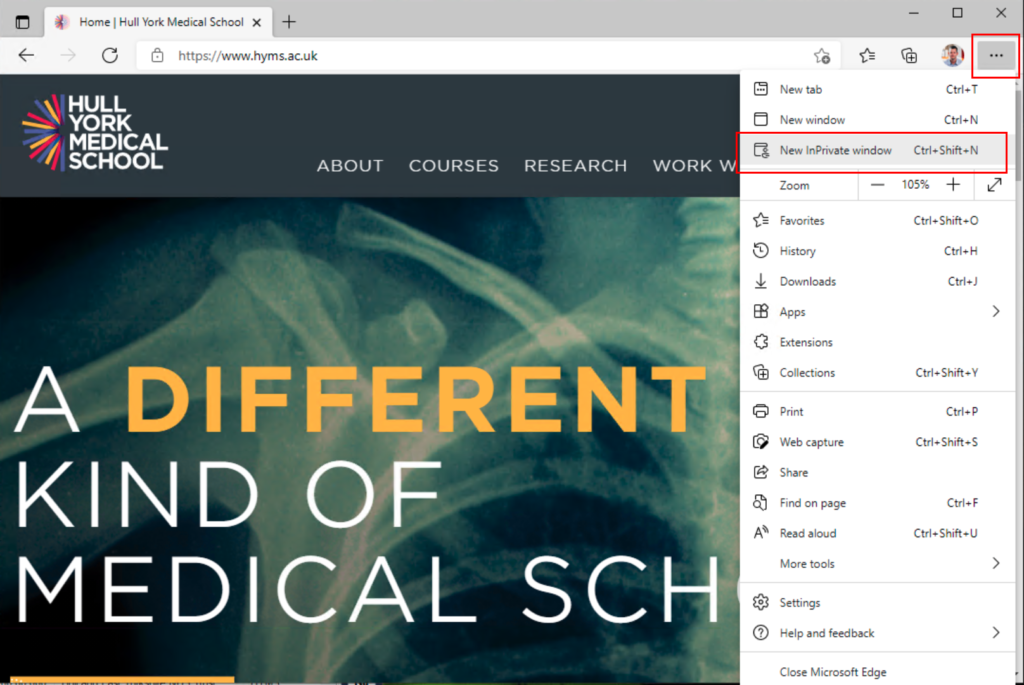
Mozilla Firefox
How to open:
- Open Firefox.
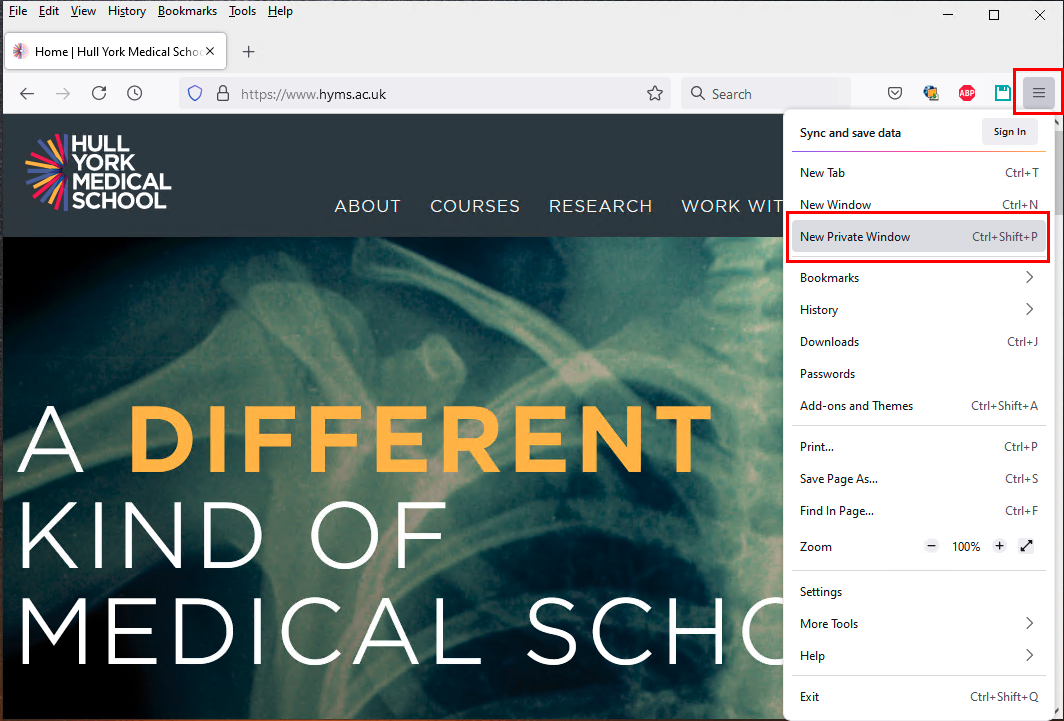
- Select the menu (three lines, top‑right).
- Choose New Private Window.
Shortcut: Ctrl + Shift + P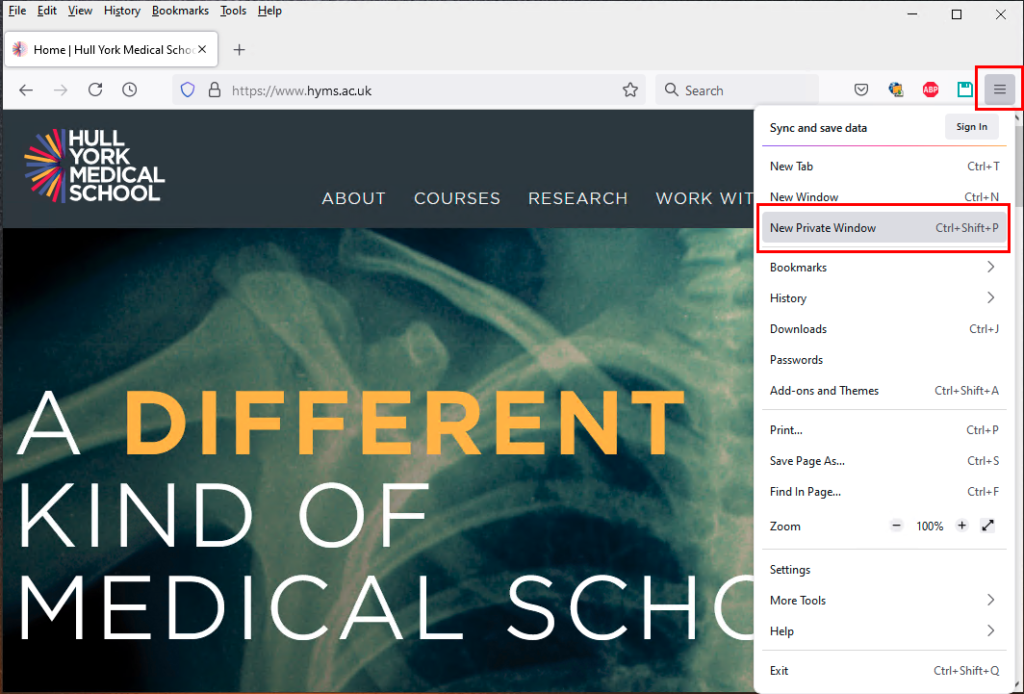
Google Chrome
How to open:
- Open Chrome.
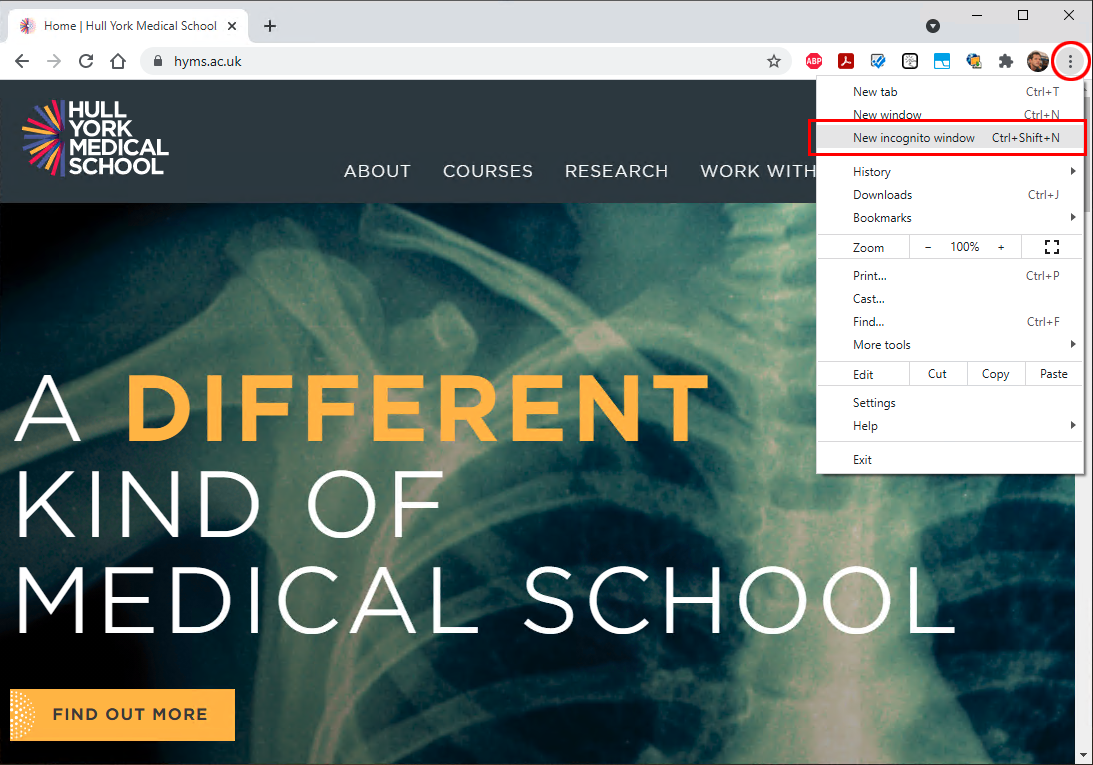
- Open the menu (three dots, top‑right).
- Select New Incognito window.
Shortcut: Ctrl + Shift + N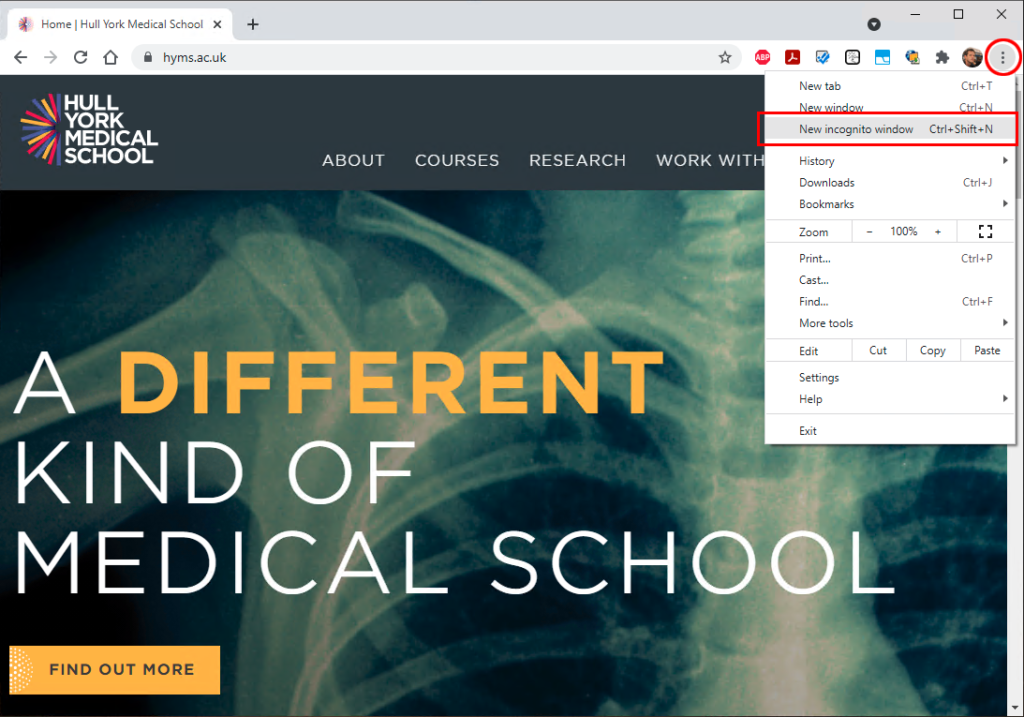
Safari (Mac)
How to open (Mac):
- Open Safari.
- From the top menu, select File > New Private Window.
Shortcut: Command + Shift + N
After Opening a Private Window
Once your private session opens:
- Visit the HYMS Microsoft 365 login page:
https://login.microsoftonline.com/ - Sign in with your HYMS credentials when prompted.
Because this is a private session, the browser will not store your login details once you close the window. This makes private browsing especially helpful when working across accounts or using shared devices.
Tips and Good Practice
- Always close all Incognito / Private windows when you finish to ensure no session information persists.
Microsoft Support - Private windows help prevent you from accidentally accessing the wrong Microsoft 365 account if you use several across different institutions.
- If you prefer not to stay signed in when prompted, choose “No”, which is consistent with best practice for shared or temporary sessions.